
Adventurist – Travel & Tourism Agency Elementor Template Kit
Adventurist – Travel & Tourism Agency Elementor Template Kit
₹199.00
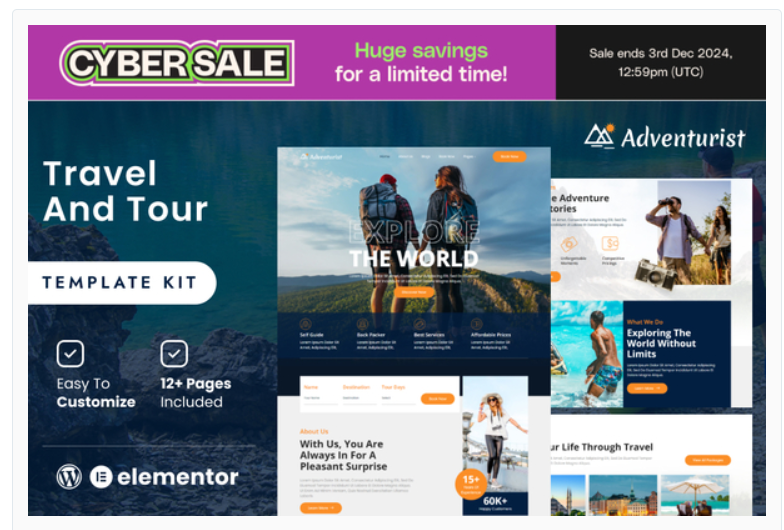
travel and tourism agency to the world with Adventurist Elementor Template Kit. This collection of customizable templates is the perfect solution for creating a professional and visually stunning website for your agency. With this kit, you’ll have everything you need to showcase your destination offerings, travel packages, and customer testimonials in a way that will inspire wanderlust in your visitors. Built using Elementor, the powerful drag-and-drop page builder, customizing these templates to match your agency’s brand and style is a breeze. The kit comes with a variety of pre-designed pages, including a home page, destinations page, packages page, and testimonials page, as well as various sections and blocks to build out your pages. The templates feature a clean and modern design, with a focus on showcasing beautiful imagery of the destinations your agency offers. The color scheme and layout are designed to evoke feelings of adventure and excitement, making it easy for potential customers to envision themselves on a dream vacation. With the Adventurist Travel & Tourism Agency Elementor Template Kit, creating a website that truly captures the essence of your agency has never been easier. Showcase your destinations and packages in the best possible light and inspire your visitors to book their next adventure with you.
Add to cart
Buy Now
Feature
- Individual elements can be fine-tuned or fonts and colors can be changed all in one spot.
- Drag-and-drop visual builder for true no-code customization.
- Design that is both contemporary and professional.
- Fast-loading.
- Most Elementor themes are compatible with this plugin.
Templates Include:
- Home Page
- About Us
- Contact Us
- Services Page
- Destinations
- Team Page
- Testimonials
- Blog
- FAQs
- Coming Soon
- Checkout
- 404
Sections and Blocks:
- Header
- Footer
- Contact Form
- Newsletter Form
- Slider Use In Banner
- Book Form
Required Plugins Pre-Installed With the Kit
- Elementor
- MetForm
- Themesflat Addons For Elementor
Template Kits: How to Use Theme
- Install and activate the plugin in WordPress by going to Plugins > Add New.
- Don’t unzip your kit file after downloading it.
- Click the Upload Template Kit button in Elements > Installed Kits. You can also import automatically by linking your Elements membership with Connect Account, then importing under Elements > Template Kits.
- Check the top of the page for an orange banner, then click Install Requirements to load any plugins the kit requires.
- First, import the Global Kit Styles.
- One template at a time, click Import. These can be found under Elementor’s Templates > Saved Templates section.
- Create a new page in Pages and then click Edit with Elementor.
- To view page options, click the gear icon in the lower-left corner of the builder and select Elementor Full Width and Hide Page Title.
- To get to the My Templates tab, click the grey folder icon, then Import the page you want to alter.
Importing Metforms: What You Need to Know
- The metform block templates should be imported.
- Import the page template with the form on it and enable the Navigator by right-clicking.
- Click Edit Form after locating and selecting the Metform widget. Then select New and Edit Form from the drop-down menu. The function Object() { [native code] } will show up.
- Select the grey folder icon that says ‘Add Template’.
- Select the ‘My Templates’ option from the drop-down menu.
- Then click ‘Insert’ after selecting your imported metform template (click No for page settings).
- After you’ve finished customizing the template, click ‘Update & Close.’ In the template, the form will appear.
- Update the information by clicking the button.